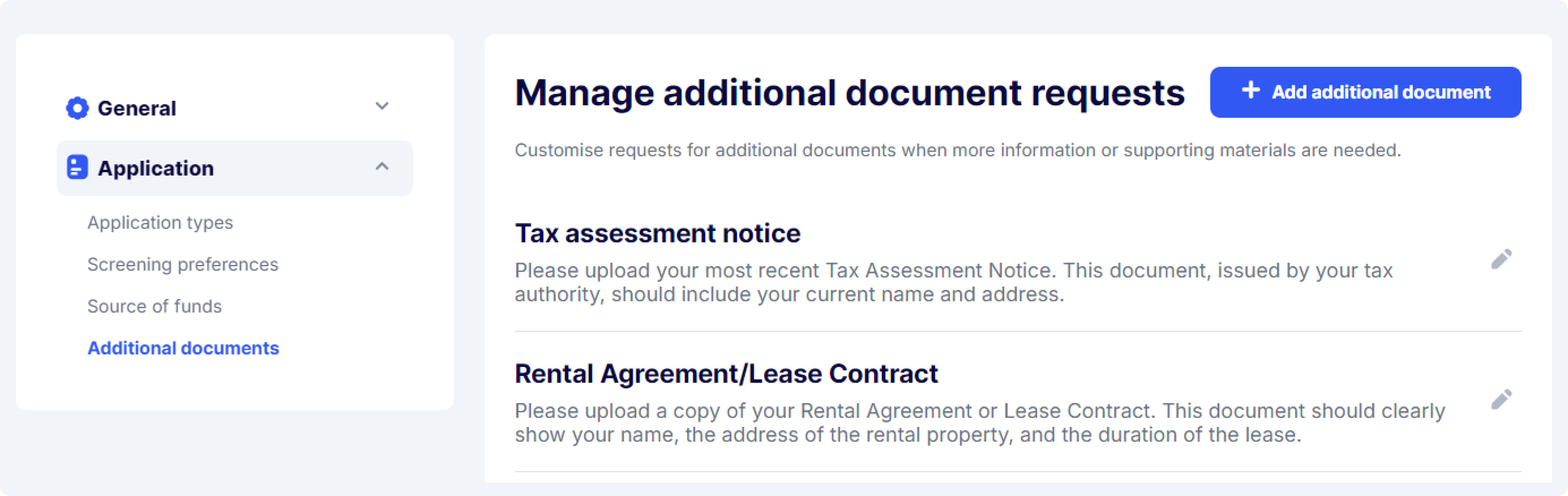
Manage additional documnets request
Manage additional documnets request
 * A pop-up screen will open, where you can:
* **Document Name**: Specify the name of the document you need your clients to submit.
* **Document Type**: Choose the required format (PDF, image, or both).
* **Description**: Provide a clear description to help your clients understand the purpose of the document.
**Editing existing "Additional** **Document"**:
You can easily edit the name, type, or description of any existing document by clicking the **pencil icon** next to it. This will allow you to update the information as needed.
---
# Agent Instructions
This documentation is published with GitBook. GitBook is the documentation platform designed so that both humans and AI agents can read, navigate, and reason over technical content effectively. Learn more at gitbook.com.
## Querying This Documentation
If you need additional information that is not directly available in this page, you can query the documentation by asking a question.
Perform an HTTP GET request on the following URL with the `ask` and `goal` query parameters:
```
GET https://verify-doc.tiller-verify.com/training-hub/user-guides/account-settings/application/additional-document.md?ask=
* A pop-up screen will open, where you can:
* **Document Name**: Specify the name of the document you need your clients to submit.
* **Document Type**: Choose the required format (PDF, image, or both).
* **Description**: Provide a clear description to help your clients understand the purpose of the document.
**Editing existing "Additional** **Document"**:
You can easily edit the name, type, or description of any existing document by clicking the **pencil icon** next to it. This will allow you to update the information as needed.
---
# Agent Instructions
This documentation is published with GitBook. GitBook is the documentation platform designed so that both humans and AI agents can read, navigate, and reason over technical content effectively. Learn more at gitbook.com.
## Querying This Documentation
If you need additional information that is not directly available in this page, you can query the documentation by asking a question.
Perform an HTTP GET request on the following URL with the `ask` and `goal` query parameters:
```
GET https://verify-doc.tiller-verify.com/training-hub/user-guides/account-settings/application/additional-document.md?ask=