> For the complete documentation index, see [llms.txt](https://verify-doc.tiller-verify.com/llms.txt). Markdown versions of documentation pages are available by appending `.md` to page URLs; this page is available as [Markdown](https://verify-doc.tiller-verify.com/training-hub/user-guides/account-settings/application/forms.md).
# Forms
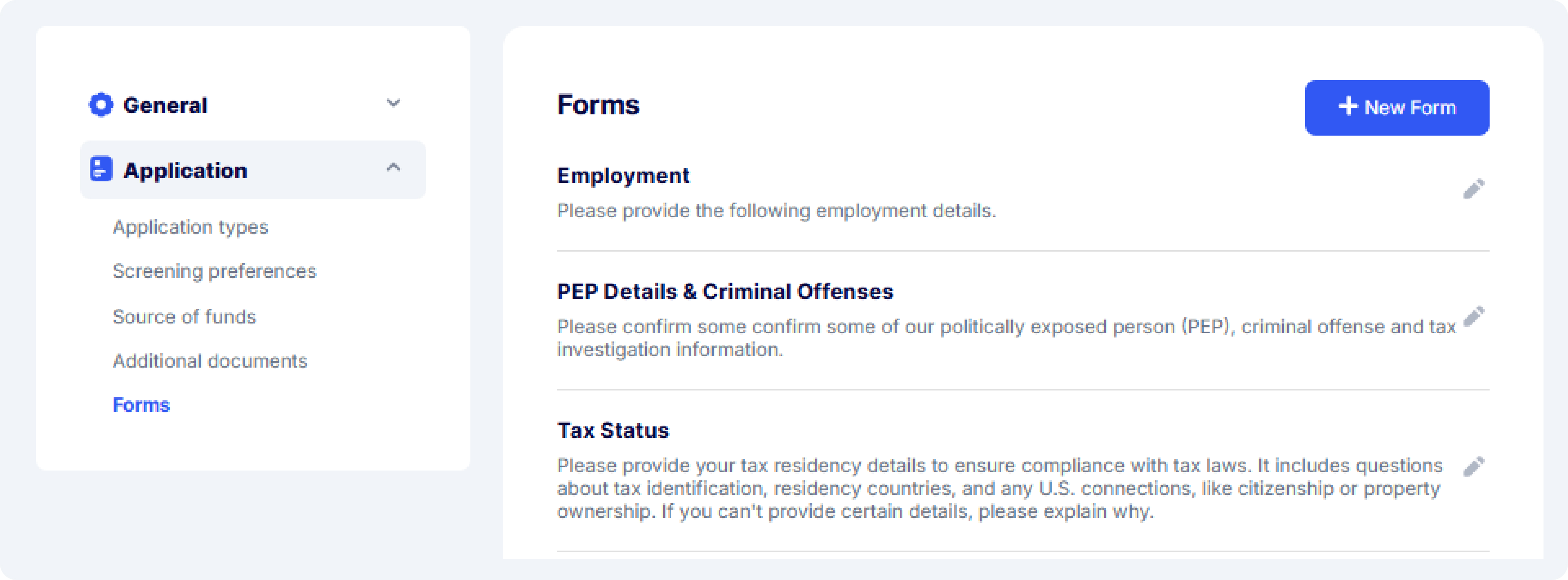
Our Form Feature empowers businesses to create and manage custom forms to collect additional client information during the KYC process. These forms enable you to ask specific, business-relevant questions, ensuring all necessary data is gathered and stored in one place. You can create multiple forms tailored to application types, providing flexibility to meet your requirements.
Once forms are created, they can be easily linked to application types. This allows your customers to complete the required forms seamlessly while undergoing KYC checks through their app. All collected information is stored in one place, streamlining the onboarding process and reducing the need for back-and-forth communication.
Forms
Start a new form by clicking the **“+ New Form”** button and follow these simple steps:
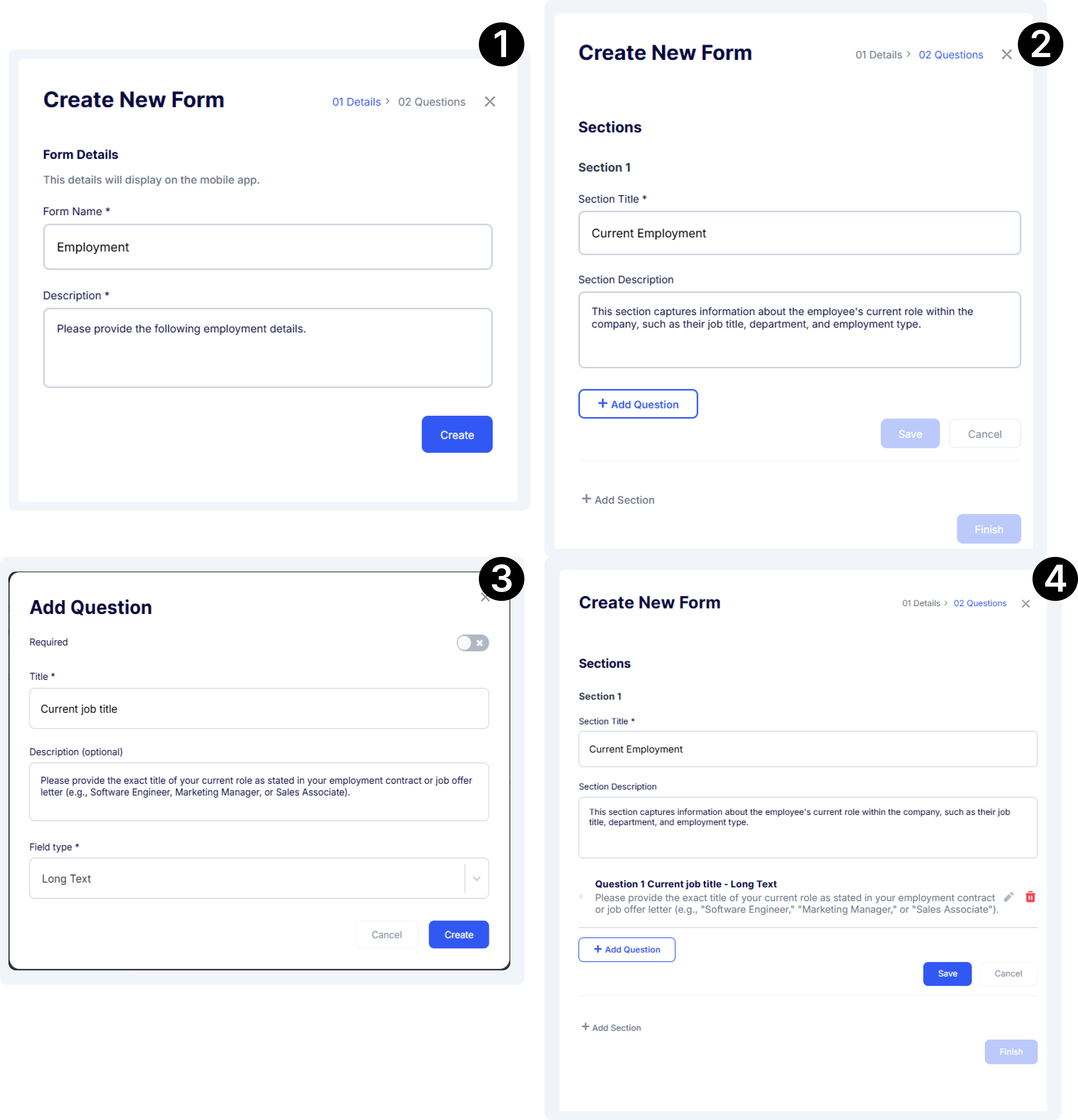
* **Step 1:** Create a Form
* **Step 2:** Add Sections to the Form
* **Step 3:** Add Questions to Each Section
* **Step4:** Review and Submit the Form
Create a new forms
**Step 1: Create a new Forms**
Start a new form by clicking on the **“+ New form”** button
Provide a name and description for your form. The **Form name** and **Description** are essential components that define the purpose and content of your form.
* **Form name:** The form name should clearly reflect its purpose, making it easy for users to understand its intent. It can align with similar forms used during customer onboarding. A well-defined name helps users quickly identify and distinguish between different types of forms, especially when managing multiple forms.
* **Form description:** The description provides a brief overview of the form’s purpose and the type of information it collects. It ensures users understand why the form is being used and what they need to complete it.
{% hint style="success" %}
**Example:**
**Form name:** *Business registration form*
**Form description:** *This form gathers essential business details from customers, such as company name, registration number, and payment information.*
{% endhint %}
**Step 2: Add sections to the form**
Organising your form into sections helps improve its structure, usability, and logical flow, making it easier for users to complete.
* Divide the form into distinct sections based on the type of information you need to collect.
* You can include up to 5 sections in one form, each with a clear section title and description.
{% hint style="success" %}
**Example:**
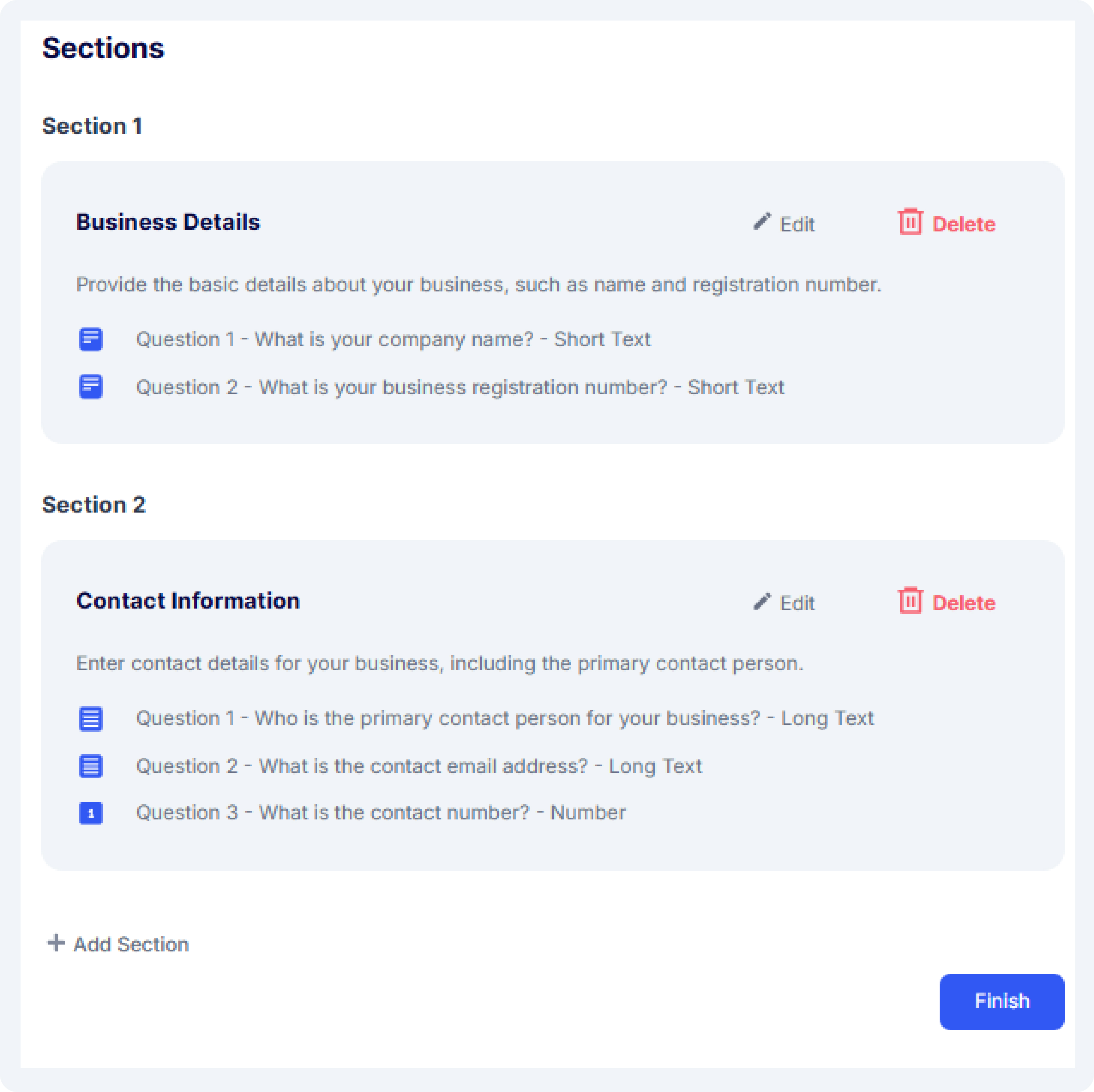
**Section 1:**
**Title**: *Business Details*
**Description:** *Provide the basic details about your business, such as name and registration number.*
***
**Section 2:**
**Title**: *Contact Information*
**Description:** *Enter contact details for your business, including the primary contact person.*
{% endhint %}
#### Step 3: Adding questions to your section
Once you have defined the section titles and descriptions, you can add up to 10 questions per section based on your business requirements. These questions should be tailored to gather the specific information you need from your clients.
You can easily rearrange the order of questions within each section to maintain a logical flow. Simply drag and drop the questions up or down to adjust their placement.
Below are the available answer types that mobile users can provide in response to your questions:
* **Short text:**
*A simple text field where users can input brief answers. Ideal for short pieces of information like names or small details.*
{% hint style="success" %}
***Example**:* *What is your full name?*
{% endhint %}
* **Long text:**
*A larger text field for longer, detailed responses. Perfect for questions that require more explanation.*
{% hint style="success" %}
***Example:*** *Please describe the nature of your business.*
{% endhint %}
* **Number**:
A *numeric input field for numbers only makes it easy for users to enter things like registration numbers, amounts, or quantities.*
{% hint style="success" %}
***Example**: What is your company registration number?*
{% endhint %}
* **Date:**
*A date picker that allows users to select a date easily. This is great for questions involving specific dates like birthdates or company founding dates.*
{% hint style="success" %}
***Example**: What is your company's founding date?*
{% endhint %}
* **Multiple select:**
*Allows users to select more than one option from a list. Ideal for questions where more than one answer may apply.*
{% hint style="success" %}
***Example**: Which of the following services does your business provide?*
*(Select all that apply) Options:*
* *Consulting*
* *Development*
* *Marketing, Design*
{% endhint %}
* **Choice (single select)**
Users can select only one option from a list. This is used for questions where only one answer is appropriate.
{% hint style="success" %}
**Example**:
*What type of business structure do you have?*
* **Options 1:** *Sole Proprietor*
* **Options 2:** *Partnership*
* **Options 3:** *Corporation*
{% endhint %}
* **Phone Number**
Allows users to enter their phone number with the country code. Input is restricted to numeric values
{% hint style="success" %}
**Example**:
*What is your contact number?* (Enter phone number with country code)
{% endhint %}
* **Email Address**
Captures a valid email address from the user. Includes built-in format validation to avoid incorrect entries.
{% hint style="success" %}
**Example**:
What is your email address?
{% endhint %}
* **Website Address**
Requires users to provide a valid website URL. The input must start with `http://` or `https://` and avoid special characters.
{% hint style="success" %}
**Example**:
Enter your business website:
{% endhint %}
* **Currency**
Users can select a currency and input a numerical amount to represent income, fees, or other financial data.
{% hint style="success" %}
**Example**:
How much is your monthly income?
{% endhint %}
**File Upload:**
Users can upload required documents or images directly via mobile. Supports image or PDF formats.
{% hint style="success" %}
**Example**:
Please upload your proof of identity.
{% endhint %}
**Address:**
Allows users to enter structured address details, including street, city, state, and postal code.
{% hint style="success" %}
**Example**:
What is your current address?
{% endhint %}
**Country:**
Users can select a country from a predefined list
{% hint style="success" %}
**Example**:
Which country do you currently reside in?
{% endhint %}
By choosing the right answer types, you ensure that your mobile users have a smooth experience while submitting their information.
Added question to sections
**Step 4:** **Review and submit the form**
Once you have added sections and questions to the form, you can easily review it. If needed, you can make edits to the questions or sections, or delete them. Once you are satisfied with the structure, simply click **"Finish"** to create the form. Your form is now ready, and you can easily add it when creating an application type.
---
# Agent Instructions
This documentation is published with GitBook. GitBook is the documentation platform designed so that both humans and AI agents can read, navigate, and reason over technical content effectively. Learn more at gitbook.com.
## Querying This Documentation
If you need additional information that is not directly available in this page, you can query the documentation by asking a question.
Perform an HTTP GET request on the following URL with the `ask` and `goal` query parameters:
```
GET https://verify-doc.tiller-verify.com/training-hub/user-guides/account-settings/application/forms.md?ask=&goal=
```
`ask` is the immediate question: it should be specific, self-contained, and written in natural language.
`goal` is what the user is ultimately trying to achieve, the reason they need the answer. Sharing it helps GitBook give you a better, more relevant answer. A goal is most helpful when it describes the outcome the user wants rather than restating the question. For example, with `ask=how do I create an API token`, a goal like `automate deployments from our CI pipeline` lets GitBook tailor the answer to that use case.
The response will contain a direct answer to the question and relevant excerpts and sources from the documentation.
Use this mechanism when the answer is not explicitly present in the current page, you need clarification or additional context, or you want to retrieve related documentation sections.