> For the complete documentation index, see [llms.txt](https://verify-doc.tiller-verify.com/llms.txt). Markdown versions of documentation pages are available by appending `.md` to page URLs; this page is available as [Markdown](https://verify-doc.tiller-verify.com/training-hub/user-guides/account-settings/general/consultants.md).
# Consultants
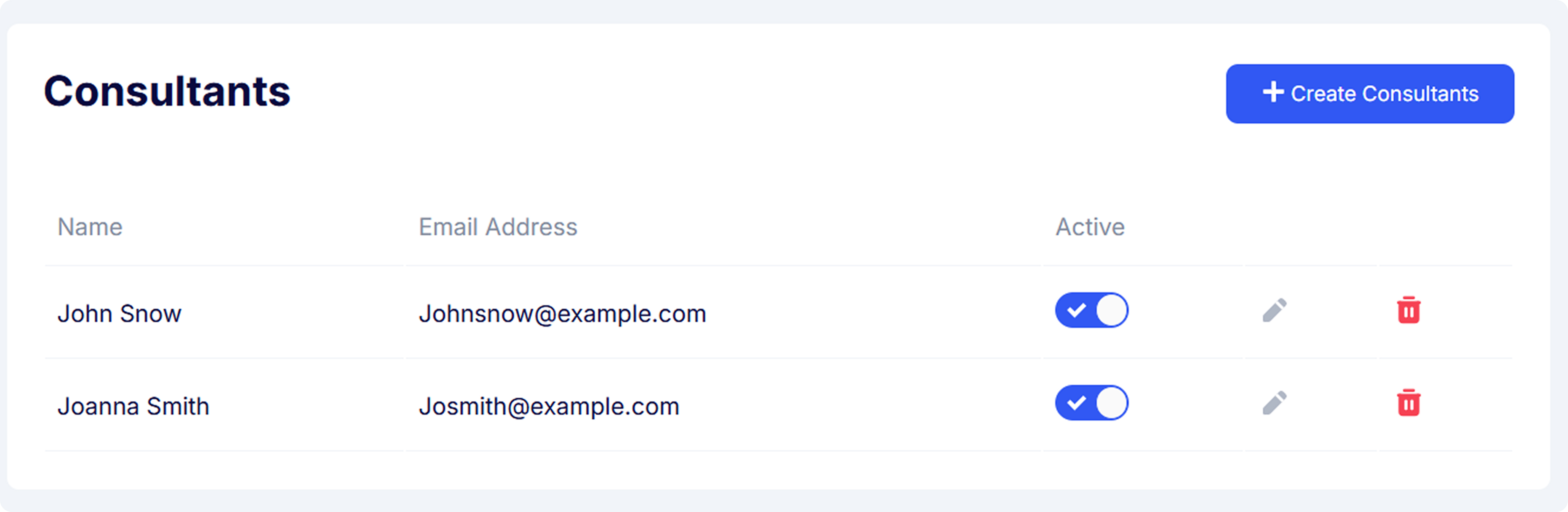
Consultant information can be included when creating an application, especially if you are completing checks on behalf of another company representative. This could include a team member in your office who is handling client interactions. These consultants can be assigned to specific applications, and their profiles are manageable from the Settings area.
You can easily manage consultant profiles by adding new consultants, editing their details, deactivating them, or removing them entirely from your verify setting area.
Consultants Configuration
Creating a New Consultant
* Click the **“+ Create Consultant”** button.
* Enter the consultant's full name and email address.
* Confirm to add them to the Verify portal, they will now appear in the dropdown when assigning consultants to applications.
Editing a Consultant
* Click the **Edit pencil icon** next to a consultant’s name.
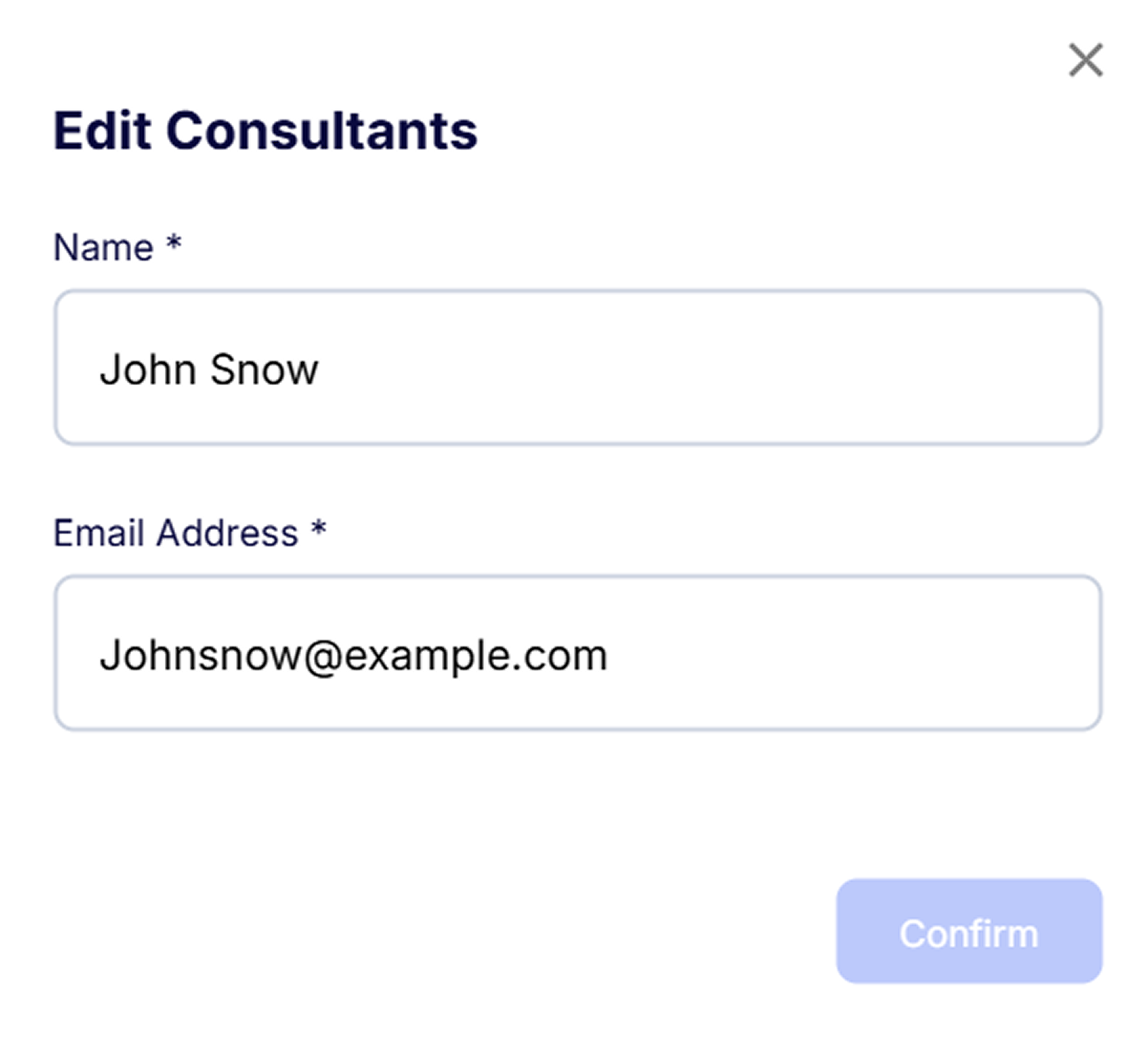
* Update their details in the modal that appears.
* Confirm to save the changes.
Edit Consultants
Enabling/Disabling a Consultant
* Use the **Active toggle** to turn a consultant on or off.
* If disabled, the consultant will not be selectable when creating new applications.
* You can re-enable them anytime by toggling them back on.
Deleting a Consultant
* Click the **Delete icon** to remove a consultant from the Verify Portal
* A confirmation message will appear. Once confirmed, the consultant will be permanently deleted.
---
# Agent Instructions
This documentation is published with GitBook. GitBook is the documentation platform designed so that both humans and AI agents can read, navigate, and reason over technical content effectively. Learn more at gitbook.com.
## Querying This Documentation
If you need additional information that is not directly available in this page, you can query the documentation dynamically by asking a question.
Perform an HTTP GET request on the current page URL with the `ask` query parameter, and the optional `goal` query parameter:
```
GET https://verify-doc.tiller-verify.com/training-hub/user-guides/account-settings/general/consultants.md?ask=&goal=
```
`ask` is the immediate question: it should be specific, self-contained, and written in natural language.
`goal` is optional and describes the broader end goal you are ultimately trying to accomplish on behalf of the user. GitBook uses it to tailor the answer towards what is most useful for that goal.
The response will contain a direct answer to the question and relevant excerpts and sources from the documentation.
Use this mechanism when the answer is not explicitly present in the current page, you need clarification or additional context, or you want to retrieve related documentation sections.